
We recently had a client request that all users have the Outlook classic ribbon rather than the new simplified ribbon that is set by default in new installs of Microsoft Office. As this client has an Active Directory environment we decided the best way to set the classic ribbon as the default would be to use a GPO.
After a little research, we discovered that there isn’t a GPO option to set this but there is a registry key that will achieve this for our client. The below steps show how to deploy this registry key using a Group Policy.


Classic Ribbon Outlook with Group Policy
- Open Group Policy Management Editor
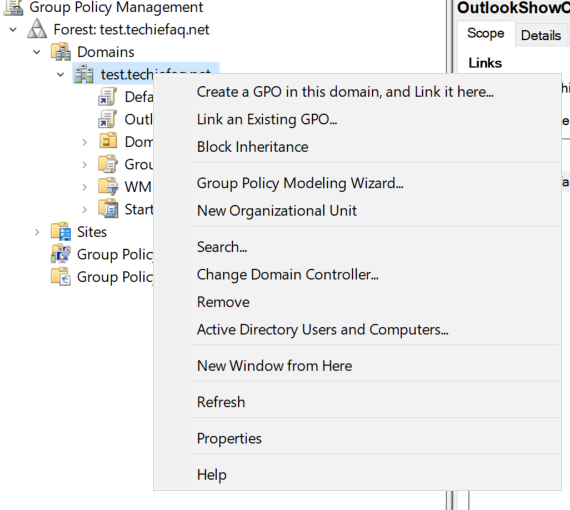
- Right-click on the OU this policy needs to be applied to
- Click on “Create a GPO in this domain, and Link it here…”
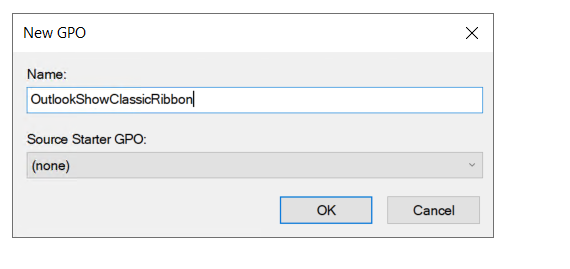
- Give the policy a descriptive name
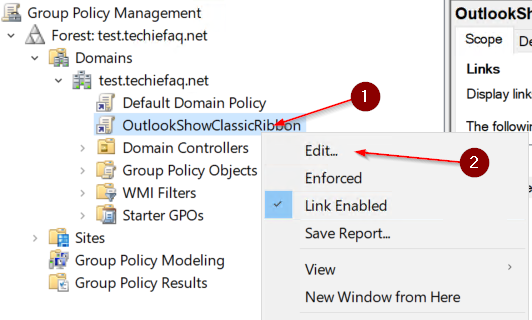
- Right-click on the new Group Policy and click on Edit
- Expand Computer Configuration, Preferences, Windows Settings
- Right-click on Registry, under New click on Registry Item
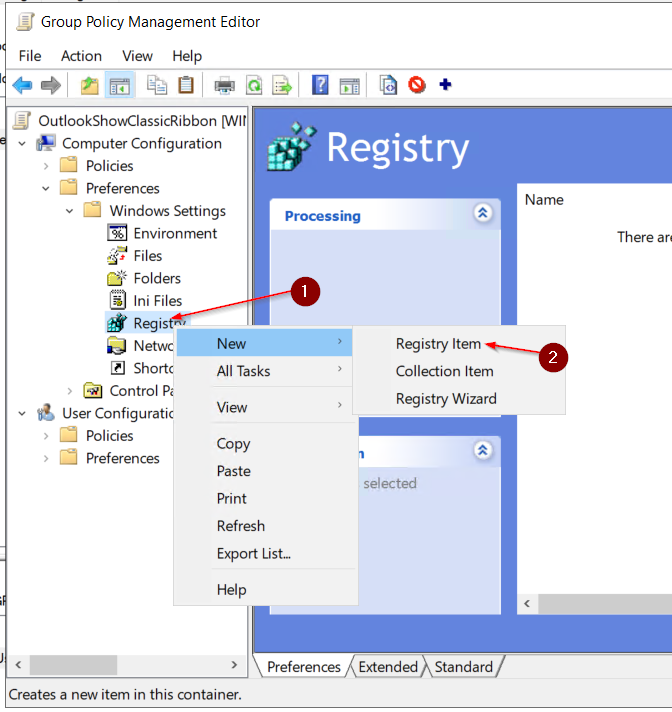
Group Policy Registry Settings
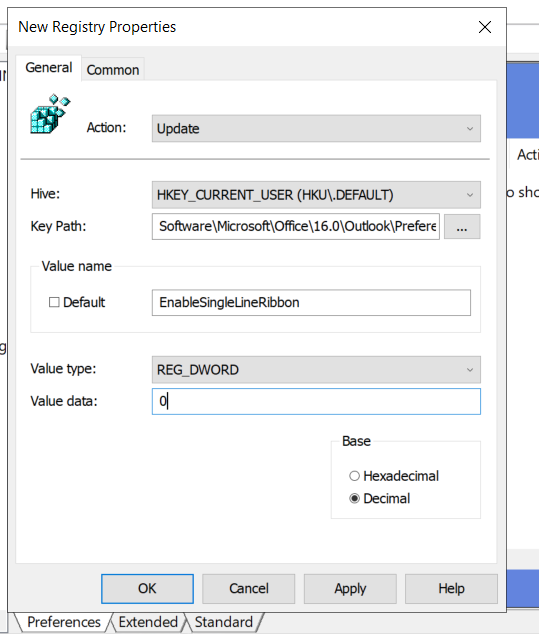
- Set Action to “Update”
- Set the Hive to
"HKEY_CURRENT_USER" - Set the key path to “
Software\Microsoft\Office\16.0\Common\Toolbars\Outlook“ - Set the Value name to “
EnableSingleLineRibbon“ - Set Value Type to “REG_DWORD”
- Set Value data to “0”
- Click on OK to save the policy
Checking the policy has applied
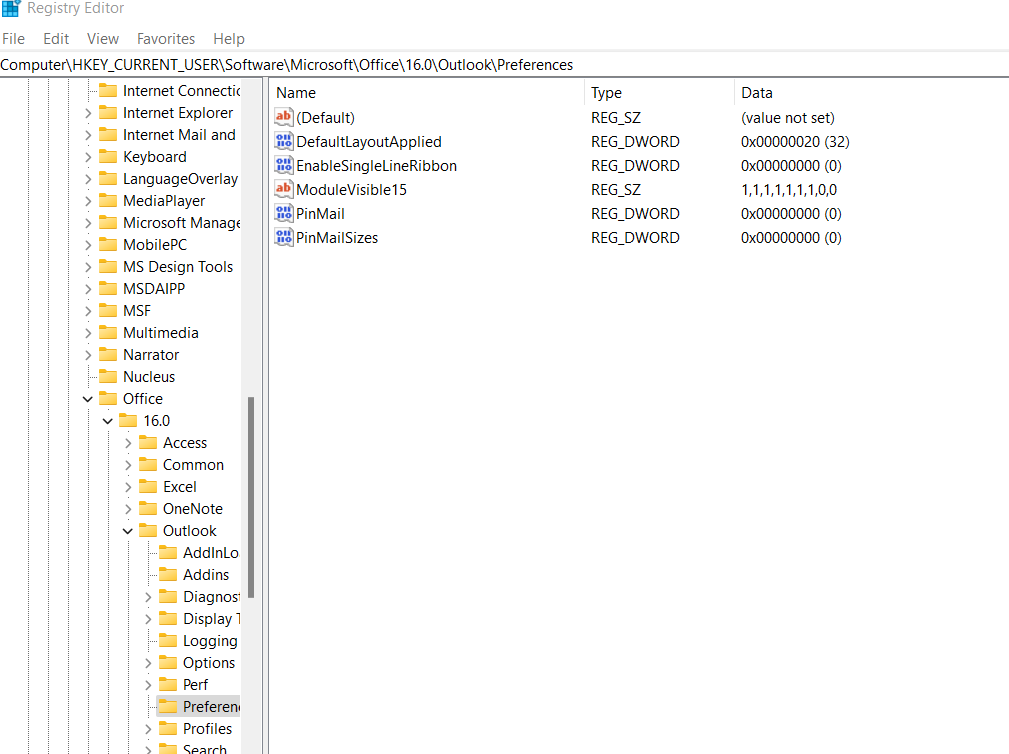
To make sure that this policy to set the classic ribbon as the default in Outlook has been applied you can check the registry. Open Registry Editor on a targeted computer and browse to:
HKEY_CURRENT_USER\Software\Microsoft\Office\16.0\Outlook\Preferences
If the policy has been applied correctly the registry key “EnableSingleLineRibbon” will have its value changed to 0.