How to Disable Fast Startup Using Group Policy (GPO), Registry & Intune
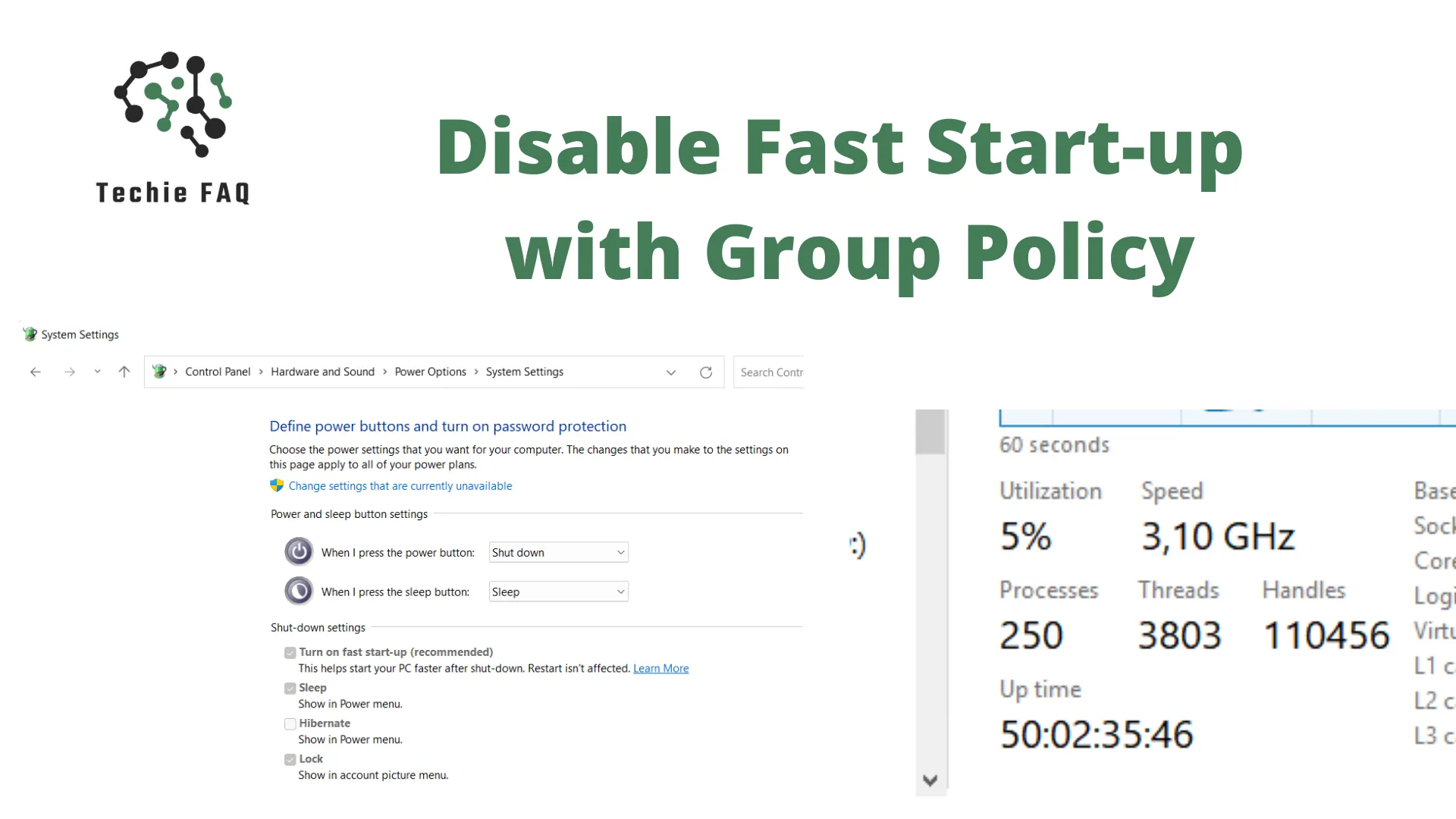
Fast Startup (introduced in Windows 8 and enabled by default in Windows 10 and Windows 11) combines traditional cold shutdowns with kernel hibernation. When a user clicks Shut down, Windows closes user sessions but writes the operating system kernel, device drivers, and system state to hiberfil.sys.
While this can shave a few seconds off boot times on older mechanical hard drives, in enterprise and managed Active Directory/Intune environments, Fast Startup causes widespread administrative headaches.
In this guide, we break down why sysadmins universally disable Fast Startup and how to enforce it via Active Directory Group Policy (GPO), PowerShell / RMM, and Microsoft Intune.
Why SysAdmins Disable Fast Startup
In business and managed network environments, Fast Startup introduces several silent failure modes:
- False System Uptime & Pending Windows Updates:
- Because Fast Startup only hibernates the kernel, shutting down and turning a PC back on does not count as a restart.
- Systems can accumulate 45+ days of recorded uptime, preventing critical Cumulative Updates and kernel security patches from finalizing.
- Group Policy & Startup Script Failures:
- GPO Computer Startup Scripts, domain trust verifications, and machine certificate renewals only execute during a true cold boot. Waking from Fast Startup bypasses these initialization hooks.
- Wake-on-LAN (WoL) & Remote Maintenance Drops:
- Fast Startup places network interface cards (NICs) in hybrid low-power D3 states, preventing overnight maintenance scripts and WoL magic packets from waking endpoints.
- Dual-Boot & Drive Corruption:
- Fast Startup leaves NTFS partitions in a “dirty” locked state. If you mount the drive from a Linux dual-boot environment or WinPE recovery disk, you risk severe filesystem corruption.
Method 1: Deploy via Active Directory Group Policy (GPO)
To enforce this setting domain-wide across an Organizational Unit (OU):
Step 1: Create the GPO
- Open Group Policy Management (
gpmc.msc) on your Domain Controller or management jump box. - Right-click the targeted Computer OU and choose Create a GPO in this domain, and Link it here…
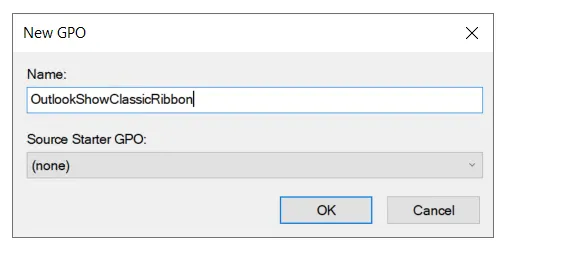
- Name the GPO:
GPO-Comp-Disable-FastStartup.
Step 2: Configure the Registry Preference Item
- Right-click your new GPO and select Edit.
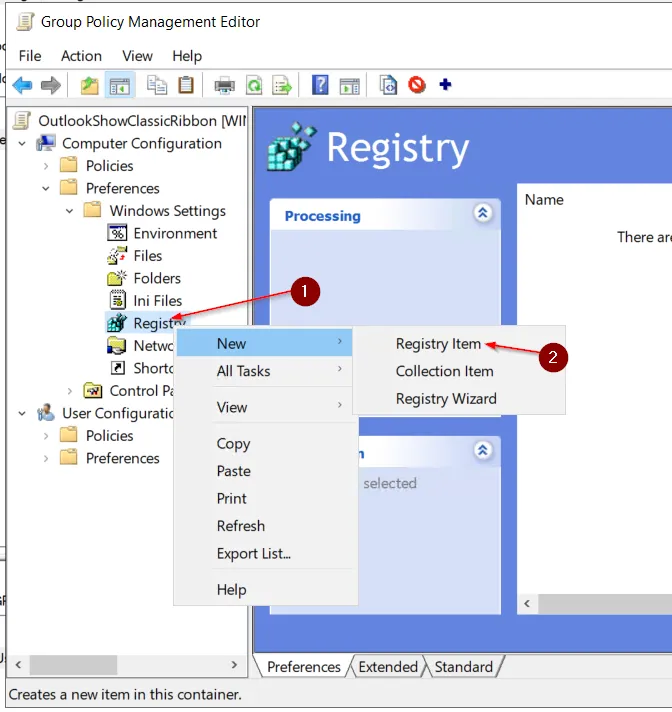
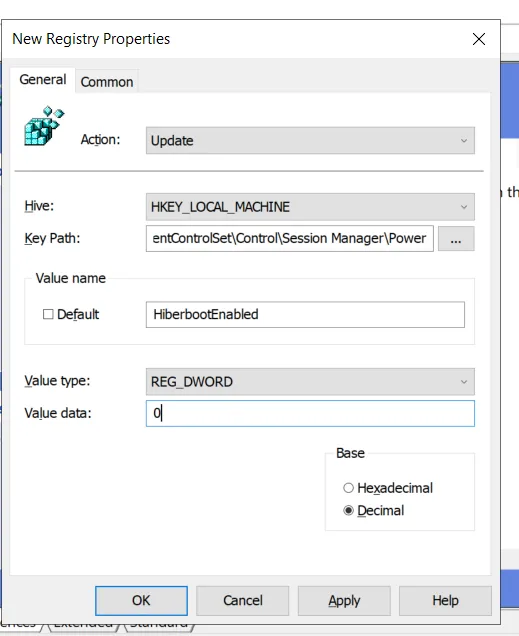
- Navigate to: Computer Configuration > Preferences > Windows Settings > Registry.
- Right-click Registry > New > Registry Item.
- Configure the registry parameters:
- Action:
Update - Hive:
HKEY_LOCAL_MACHINE - Key Path:
SYSTEM\CurrentControlSet\Control\Session Manager\Power - Value Name:
HiberbootEnabled - Value Type:
REG_DWORD - Value Data:
0
- Action:
- Click Apply and OK.
Method 2: Deploy via PowerShell (RMM / Automation)
For MSPs, RMM agents (NinjaOne, Datto, ConnectWise Automate), or manual admin deployment, execute this elevated PowerShell script:
# Disable Windows Fast Startup (Elevated Admin)
$RegPath = "HKLM:\SYSTEM\CurrentControlSet\Control\Session Manager\Power"
$ValueName = "HiberbootEnabled"

if (Test-Path $RegPath) {
    Set-ItemProperty -Path $RegPath -Name $ValueName -Value 0 -Type DWord -Force
    Write-Output "Fast Startup successfully disabled (HiberbootEnabled = 0)."
} else {
    Write-Error "Registry path not found."
}
Method 3: Deploy via Microsoft Intune (Cloud Endpoints)
For cloud-native Windows 10 and 11 workstations managed via Intune:
- Open the Microsoft Intune admin center.
- Go to Devices > Windows > Configuration profiles > Create profile.
- Select Platform:
Windows 10 and later, Profile type:Settings catalog. - Name the policy:
Win11 - Power - Disable Fast Startup. - Under Settings picker, navigate to Administrative Templates > System > Shutdown.
- Select and enable Require use of fast startup, but toggle its setting value to Disabled.
- Assign the policy to your target All Corporate Devices or specific device group.
How to Verify Fast Startup Is Disabled
Option A: Via Command Line (Fastest)
Open an elevated Command Prompt or PowerShell and check the active sleep states:
powercfg /aIf Fast Startup is disabled or hibernation is turned off, Fast Startup will appear under The following sleep states are not available on this system.
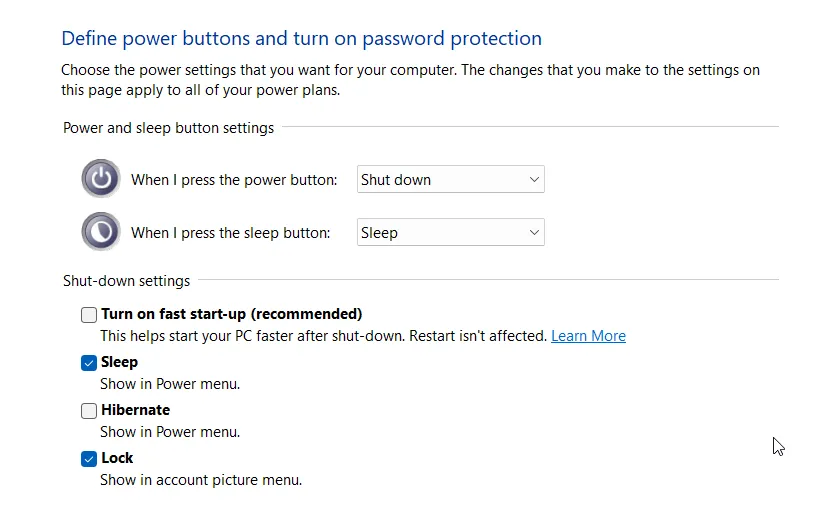
Option B: Via Windows GUI (Control Panel)
- Open
control.exeand navigate to Hardware and Sound > Power Options. - Click Choose what the power buttons do on the left menu.
- Under Shutdown settings, the checkbox for Turn on fast start-up (recommended) will be unchecked.
Frequently Asked Questions
Does disabling Fast Startup slow down SSD boot times?
On modern NVMe and SATA SSDs, the difference is negligible—usually less than 1 to 2 seconds. The stability gains, accurate uptime reporting, and consistent patch installations far outweigh the microscopic boot time difference.
What is the difference between disabling Hibernation vs. Fast Startup?
Disabling hibernation completely (powercfg -h off) automatically disables Fast Startup because Fast Startup relies on the hibernation file (hiberfil.sys). However, setting HiberbootEnabled = 0 allows users to still use standard Hibernation while ensuring regular shutdowns perform a clean cold boot.