
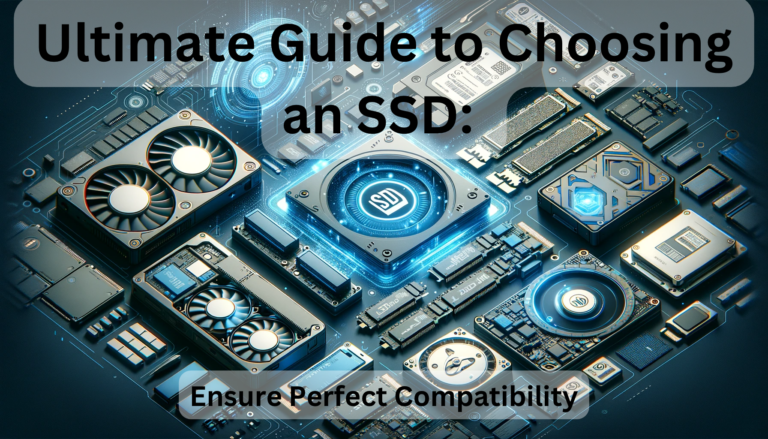
When it comes to upgrading your computer, picking the right SSD can feel like a game-changer. I’ve seen firsthand how the speed and reliability of a solid-state drive can breathe new life into an aging system.
But with so many options on the market, how do you choose the best one for your needs? I’ll walk you through the essential factors to consider, from storage capacity to read/write speeds, ensuring you make an informed decision.
Stick with me, and you’ll discover the keys to unlocking a faster, more efficient computing experience. By the end of this article, you’ll be equipped to select an SSD that not only fits your budget but also maximizes your device’s performance.
Factors to Consider When Choosing an SSD
When it’s time to upgrade to an SSD, several key factors come into play to ensure you get the most bang for your buck. It’s not just about jumping on the first deal you see; it’s about understanding what makes one SSD stand out from another.
Storage Capacity is a primary concern. SSDs range from modest 120GB drives, suitable for a system with minimal storage needs, up to several terabytes for power users with extensive libraries of games and media. As a rule of thumb, a 500GB to 1TB drive often hits the sweet spot between affordability and space.
Next, the Read and Write Speeds are critical to performance. These speeds can vary greatly between models and directly impact how quickly your system boots up, loads software, and transfers files. For most users, an SSD with a read speed of over 500MB/s suffices, but if you’re after top-tier performance, look for speeds exceeding 3000MB/s.
Consider also the Type of SSD. The two common types of SSDs are SATA and NVMe. SATA SSDs offer good performance and compatibility with older systems, but NVMe SSDs take advantage of PCIe lanes, providing significantly faster data transfer rates.
Don’t overlook the Durability and Lifespan of an SSD. SSDs are more robust than HDDs, but they can still wear out over time. Pay attention to the terabytes written (TBW) rating, which gives you an estimate of how much data can be written to the drive before it starts to fail.
Lastly, SSDs come with different Form Factors: 2.5-inch, M.2, and mSATA. Make sure you choose one that fits your motherboard or laptop specifications. A mismatch here could mean a wasted investment.
Understanding these aspects will guide you towards the best SSD option for your upgrade, ensuring that you don’t just improve your system’s performance, but you also get a reliable storage solution that’ll serve you well into the future.
Storage Capacity: Finding the Right Fit
Figuring out the perfect storage capacity for a new SSD can be tricky, but it’s essential to get it right. Generally, SSDs come in a range of sizes from 128GB to 4TB. For an average user, a 500GB or 1TB SSD is often an ideal balance between cost and space.
However, my needs might be different from yours. If I’m a casual user who mainly browses the internet, streams videos, and works with documents, a 256GB SSD could suffice. But for gamers or professionals working with large files and applications, springing for a 2TB or larger SSD may be worth the investment.
Keep in mind applications and operating systems are continually evolving, often requiring more space. Plus, having extra storage on the SSD can contribute to better performance due to the way SSDs manage data. The rule of thumb I follow is to choose an SSD that has more capacity than I currently need to account for future needs.
To help you narrow down your options, here’s a brief rundown of my recommendations based on user profiles:
- Casual user: 256GB to 512GB
- Gamer/Professional: 1TB to 2TB
- Power user with extensive media libraries or large projects: 2TB or more
Remember, prices per gigabyte tend to decrease as the total capacity increases, meaning higher-capacity drives often provide better value per gigabyte. However, it’s also essential to balance that with the reality of my budget constraints. Opting for an SSD with the right storage capacity isn’t just about meeting my current needs—it’s about future-proofing my investment and ensuring I won’t need to upgrade again in the near future.
Understanding Read/Write Speeds: Crucial for Performance
When you’re in the market for an SSD, you’ll often hear about read/write speeds. These are critical metrics that define how fast data can be read from and written to the SSD. What does this mean for you? Well, it’s simple – faster read/write speeds can significantly boost your computer’s performance, especially when loading games, transferring files, or booting up your operating system.
Read speeds dictate how quickly you can open files or load programs, whereas write speeds determine the pace at which data is saved or copied to your drive. For most users, high read speeds are more noticeable in everyday tasks, but content creators and professionals will definitely appreciate high write speeds for their ability to swiftly handle large files and edits.
Let’s talk numbers. A standard Hard Disk Drive (HDD) might offer read/write speeds of about 80-160 Megabytes per second (MB/s). In contrast, even a budget SSD generally starts at around 300 MB/s, with premium models boasting speeds above 500 MB/s. For high-end SSDs, you can see numbers climb to over 3000 MB/s for both reading and writing.
Here’s a quick comparison to illustrate my point:
| Drive Type | Read Speed (MB/s) | Write Speed (MB/s) |
|---|---|---|
| HDD | 80-160 | 80-160 |
| Budget SSD | 300+ | 300+ |
| Premium SSD | 500+ | 500+ |
| High-end SSD | 3000+ | 3000+ |
Note that these speeds can greatly impact your experience depending on what you use your computer for. For gaming enthusiasts and video editors, SSDs with faster read/write speeds can provide a smoother and more responsive user experience. Even for everyday computing, a jump from an HDD to an SSD is like shifting from a bicycle to a sports car – the difference is that noticeable.
In the context of upgrading and choosing the right SSD for your needs, always weigh the read/write speeds along with the storage capacity. They’re integral to performance and can be the difference between a sluggish system and a lightning-fast machine. Remember to consider the types of tasks you’ll be performing, and choose an SSD that offers the perfect balance for your specific scenario.
Form Factor Matters: Choosing the Right Size
When you’re in the market for an SSD, it’s crucial to consider the form factor. Form factor refers to the physical size and shape of the SSD, and it’s a key aspect of compatibility with your computer system. Not all SSDs will fit in every machine, so ensuring you’ve got the right size can save you a headache later on.
There are several form factors available:
- 2.5-inch drives are standard for desktops—and many older laptops—requiring a SATA connection.
- M.2 drives, which are smaller and more compact, connect directly to the motherboard and are commonly found in modern laptops and desktops.
- The mSATA is similar in size to M.2 but is becoming less popular as M.2 takes over.
- PCIe add-in cards (AICs) offer high performance and are designed to slot into the motherboard like a graphics card.
Before making a purchase, I’ll check my computer’s specifications or open the case to identify which form factor suits my needs. Upgrading to an SSD requires matching your slot type and available space to avoid purchasing an incompatible drive.
It’s also worth noting that with each form factor, there may be variations in performance. M.2 drives, for example, often support NVMe technology, which can offer dramatically faster speeds compared to the traditional SATA interface found in 2.5-inch and mSATA drives.
I always advise measuring the internal space of your computer case if you’re unsure what will fit. For laptops, it’s generally best to consult the user manual or manufacturer’s website to determine the exact specifications required. Many modern laptops have limited space and may only accommodate the slimmer M.2 format.
Remember, it’s not just about the storage capacity or the read/write speeds. The physical size of the SSD is just as important to ensure it fits into your system seamlessly. It’s a detail that might seem small, but it can have a significant impact on your upgrade process.
Compatibility: Ensuring a Seamless Integration
When I’m upgrading my computer’s storage with an SSD, ensuring compatibility isn’t just about the physical fit; it’s also about ensuring my system’s motherboard can support the drive. For starters, SATA and NVMe are two protocols I need to be aware of. While SATA SSDs are typically compatible with older systems, NVMe SSDs require a motherboard that has an M.2 slot with PCIe connectivity.
I always check my motherboard’s documentation to see which interfaces it supports. If my motherboard is older, it might need a firmware update to fully support NVMe SSDs. Neglecting to check this could spell trouble—leaving me with speeds that don’t live up to the SSD’s potential or, worse, a drive that won’t work at all.
Beyond the protocol, I consider the BIOS/UEFI settings on my computer. Sometimes, to get the best out of my SSD, I’ll need to tweak these settings. For instance, switching from Legacy to AHCI mode can unlock higher speeds and enhance performance. If I’m uncomfortable with handling BIOS settings, I’ll make sure to reach out to a tech-savvy friend or professional to avoid missteps.
Another aspect of integration is the operating system. It’s essential to ensure it’s up to date and supports TRIM—an SSD optimization command that helps to maintain its performance over time. Operating systems like Windows 10 and macOS since Sierra automatically support TRIM, but if I’m rocking an older OS, I’ll need to confirm compatibility.
Lastly, for a truly seamless integration, I’ll take note of the power and data cabling. Especially in tight builds, the right cables and management techniques can make a world of difference. I’ll avoid unnecessary adapters that can introduce electrical resistance or data bottlenecks—and I’ll always go for quality cables that won’t fail me during intensive operations.
Remember, SSDs can truly revitalize a system’s performance, but every piece of the puzzle — from protocols to power management — must fit just right.
Conclusion
Choosing the right SSD is crucial for boosting your system’s performance and ensuring a smooth experience. Remember to double-check compatibility, not just in terms of the physical connection but also for your motherboard’s capabilities and the necessary BIOS/UEFI settings. Don’t overlook the importance of power and data cabling to avoid any hiccups during installation. By paying attention to these details, you’ll set yourself up for success with an SSD that fits your system like a glove and delivers the blazing-fast speeds you’re looking for.
Frequently Asked Questions
What factors should I consider for SSD compatibility?
The key factors to consider for SSD compatibility include ensuring the right fit and form factor, motherboard support for the drive, appropriate protocol (SATA or NVMe), the presence of an M.2 slot and PCIe connectivity for NVMe SSDs, BIOS/UEFI settings, operating system support for features like TRIM, and the correct power and data cabling.
How do I know if my motherboard supports NVMe SSDs?
To determine if your motherboard supports NVMe SSDs, check for an M.2 slot with PCIe connectivity. Review your motherboard’s documentation and look for terms such as ‘NVMe’ or ‘PCIe’ in the specifications.
Are firmware updates necessary for new SSD installation?
In some cases, firmware updates for your motherboard may be necessary to ensure compatibility and optimal performance with your new SSD. Always check the manufacturer’s recommendations and update if required.
Why are BIOS/UEFI settings important when installing an SSD?
BIOS/UEFI settings are crucial as they can affect the recognition and performance of your SSD. Ensure that the settings match the specifications needed for your SSD, such as AHCI mode for SATA SSDs or the correct boot order.
What is TRIM and why is it important for SSDs?
TRIM is a command that allows an operating system to inform an SSD which blocks of data are no longer considered in use and can be wiped internally. This helps in maintaining the performance and lifespan of the SSD. It’s important to ensure your operating system supports TRIM for SSDs.